Showing posts with label Raytrace Optimization Series. Show all posts

Raytrace Optimization - Creating RT Triggers, Setting Up Level Streaming - Part 2 | UE4

Hello guys, in this video I tell you how to create a trigger blueprint, from which you will be able to turn on and off Raytrace Shadows, Raytrace Ambient Occlusion, Raytrace Global Illumination, and Raytrace Reflections in locations that you want them on or off.
Then I tell you how to set up level streaming, to load and unload specific maps in your level of Unreal Engine 4, thus increasing the FPS substantially!

Timestamps:
Quick Overview: 00:00
Enabling/Disabling Raytrace Setting via Trigger Blueprint: 00:50
Setting Up Level Streaming: 06:35


Raytrace Optimization - Creating RT Toggle Widget, Setting Up RT Lights & Tips - Part 1 | UE4

Hello guys, in this video I give you a quick overview of the different types of Raytracing, tell you how to create an RT toggle button, from which you will be able to turn on and off Raytrace Shadows, Raytrace Ambient Occlusion, Raytrace Global Illumination, and Raytrace Reflections.
Then I tell you about some tips about how to decide which RT setting to enable in which part of your level, and reasons why you should not enable multiple RT settings.
After that I tell you about how to increase FPS when Raytrace shadows are turned on, which is done by disabling "Cast Raytraced Shadows" in all the unnecessary lights.
I also tell you how to remove the "Harsh" shadows that might appear if you enable multiple RT lights in one scene, or if you enable RT Lights that cast RT Shadows in conjunction with normal light.

Timestamps:
Quick Overview: 0:10
Types Of Raytracing and Their Usage: 0:50
Creating a Widget to Toggle Raytracing via buttons: 2:50
How to chose which RT Setting to enable: 10:30
How to increase FPS when RT Shadows is turned on: 15:15
How to remove Harsh shadow effect when you use RT Shadows: 19:10
End of video (Snippet of wonders of level streaming): 23:25


Raytracing On GTX 1060 - No Optimization vs Mild Optimization vs High Optimization

Hey guys, In this video I show you what wonders optimization can do to your game! Basically, without any optimization, your games FPS can fall down to 10FPS, but with optimization, you can play at 45-60 FPS with raytracing, on a GTX 1060!


There are three levels of Optimization: 
  1. No Optimization - Raytracing is enabled everywhere, this causes severe FPS drop, down to 10FPS. 
  2. Mild Optimization - Raytracing is enabled everywhere, but lights turn off when they are not near the player. This means that Raytraced Shadows and AO do not have to be calculated, thus increasing FPS. 
  3. High Optimization - Only Raytracing methods that make a difference are enabled. So for example, if RT Ambient Occlusion makes the room look better than RT Shadows, then I just turn on RT AO and turn off every other RT method. Another thing I do is that I unload a part of the level that is not visible to the player. So when the player goes inside another room, the room that he was previously in unloads, causing a drop in RT calculations and an increase in FPS. 

How to enable & Optimize Raytracing | UE4

Hey guys, in this tutorial, I show you how to enable Raytracing, as well as how to optimize it, as well as the different raytracing settings that you can enable, such a raytraced AO, raytraced shadows, raytraced reflections, and raytraced global illumination. I show you how to enable and disable the different raytrace settings! For more in-depth details about raytracing techniques, check out this article here:

Raytracing Techniques GTX 1060 - Global Illumination vs Reflections vs Shadows vs Ambient Occlusion

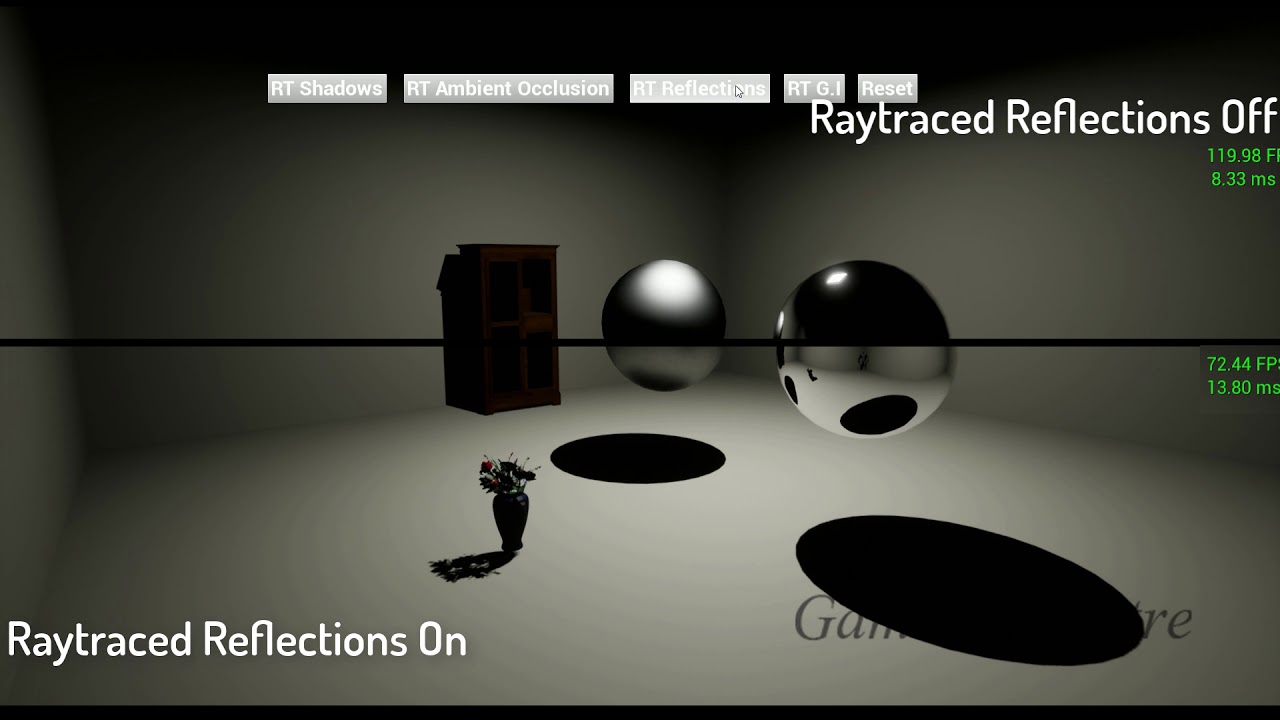
Hey guys, In this video, I show you different raytracing techniques, such as Raytraced Global Illumination, Raytraced Reflections, Raytraced Shadows, and Raytraced Ambient Occlusion. I show what difference they make in terms of visual quality as well as in terms of FPS. This is all running on a GTX 1060, so FPS are quite low, and might increase with a better GPU.

----------------------------
Time Stamps:
Raytraced Shadows On: 0:11
Raytraced Shadows Off: 0:21
Raytraced Shadows On vs Off: 0:31
Raytraced Reflections On: 0:41
Raytraced Reflections Off: 0:52
Raytraced Reflections On vs Off: 1:02
Raytraced Global Illumination On: 1:12
Raytraced Global Illumination Off: 1:22
Raytraced Global Illumination On vs Off: 1:32
Raytraced Ambient Occlusion: 1:42
Traditional Ambient Occlusion: 1:52
Raytraced Ambient Occlusion vs Traditional Ambient Occlusion: 2:02
Raytraced Shadows Closeup (On): 2:12
Raytraced Shadows Closeup (Off): 2:22

For a more in-depth video, please go to this article: